
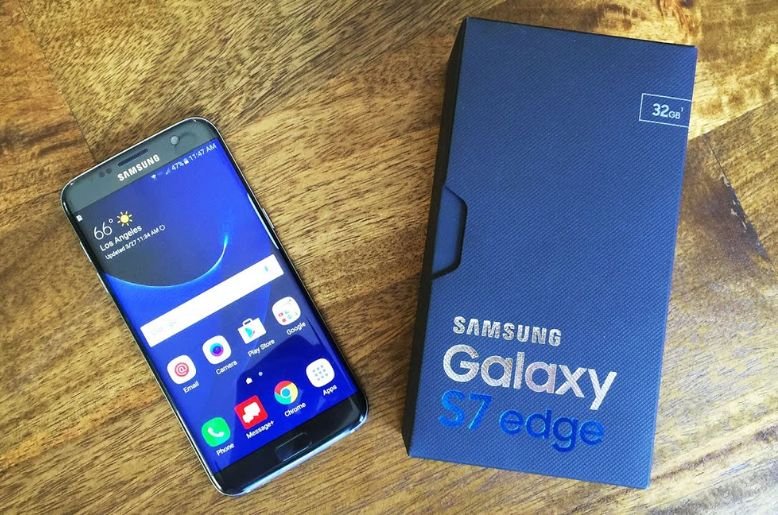
The Samsung Galaxy S7 Edge was flagship phone that many people loved. It had great screens and cameras for its time. Even today, many people in Pakistan still use this reliable phone. However, like any electronic device, such mobiles can develop faults over time.
You might face issues with the screen, battery, or software. These problems can be frustrating. You rely on your phone for daily tasks. When it stops working right, it disrupts your life.
This guide looks at the most common issues owners face. We provide simple fixes you can try at home. We also tell you when it is time to visit a repair shop. Understanding these problems helps you keep your phone running smoothly for longer.
Fixing the Pink Line and Screen Burn-in
One of the most reported problems with the S7 Edge is the display. Two specific issues stand out: a vertical pink line and screen burn-in.
The Vertical Pink Line
Many users see a bright pink line running down the screen. This usually happens on the right side. It is often a hardware defect. The internal connection to the display becomes loose or damaged.
Potential Solutions:
- Reset the pixels: Dial *#0*# on your keypad. This opens the service menu. Tap on Red, Green, and Blue colors to reset the pixels. Sometimes this resets the display connection temporarily.
- Press the top of the screen: Gently press near the front camera logo. Do not press too hard. If the connection is loose, this might reconnect it.
- Hardware replacement: If the above tricks do not work, the screen panel is likely damaged. You will need a professional screen replacement.
Screen Burn-in (Ghost Images)
The S7 Edge uses an AMOLED screen. These screens are vibrant but suffer from “burn-in.” This happens when an image stays on the screen for too long. A faint ghost image remains visible even when you switch apps.
How to manage it:
- Lower brightness: High brightness speeds up burn-in. Keep your screen brightness at 50% or lower.
- Screen timeout: Set your screen to turn off quickly when not in use. Go to Settings > Display > Screen timeout and choose 30 seconds.
- Invert colors: Occasionally, using the “Negative colors” option in Accessibility settings can help balance pixel usage.
Solving Battery Drain and Overheating
A phone that dies quickly or gets too hot is very annoying. The S7 Edge is an older phone now. Batteries degrade with age. However, software issues can also cause these problems.
Rapid Battery Drain
If your battery drops from 100% to 0% in a few hours, something is wrong.
Fixes to try:
- Check battery usage: Go to Settings > Battery > Battery Usage. Look for apps using too much power. Uninstall or disable apps you do not need.
- Disable Always On Display: This feature looks nice, but it uses battery. Turn it off in Settings > Display.
- Clear cache partition: Turn off your phone. Press and hold Volume Up + Home + Power buttons. Use volume keys to select “Wipe cache partition” and press Power to confirm. This clears temporary files that might cause a drain.
- Battery replacement: If the phone is several years old, the battery health is likely low. A new battery is the best long-term fix.
Overheating
Does your phone get hot while charging or during use? This damages internal parts.
Cooling tips:
- Remove the case: Thick cases trap heat. Take the case off while charging.
- Avoid using while charging: Let the phone charge in peace. Gaming while charging generates excess heat.
- Close background apps: Too many active apps make the processor work hard. Use the “Close All” button in your recent apps menu.
Addressing Performance Lag and Crashes
The S7 Edge should be fast enough for basic tasks. If it freezes or lags, the software needs attention.
Why it happens?
- Full storage: When memory is full, the phone slows down.
- Outdated software: Old bugs slow down the system.
- Corrupt data: Bad files can crash apps.
How to speed it up:
- Free up space: Delete old photos and videos. Move them to a computer or Google Photos. Uninstall games you do not play. Aim for at least 2GB of free space.
- Update apps: Go to the Google Play Store and update all your apps. Developers fix crashes in new versions.
- Factory Reset: This is the last resort. It deletes everything. Back up your data first. Go to Settings > Backup and reset > Factory data reset. Your phone will run like new afterwards.
Fixing the Charging Port and Wireless Charging
Power issues are critical. If you cannot charge the phone, you cannot use it.
Wired Charging Fails
Sometimes the cable is plugged in, but the phone does not charge.
- Clean the port: Lint and dust get stuck in the USB port. Use a wooden toothpick or a soft brush to gently clean it. Do not use metal.
- Change the cable: USB cables break internally. Try a different cable and adapter.
- Check for moisture: If the phone detects water, it stops charging for safety. Dry the phone completely.
Wireless Charging Pauses
The S7 Edge supports wireless charging. If it pauses often:
- Check the case: Metal cases block wireless charging. Thick cases also interfere. Remove the case and try again.
- Align correctly: The charging coil is in the center of the back. Make sure the phone sits right in the middle of the pad.
- Use an original charger: Cheap wireless chargers often have weak signals. Use a Samsung-approved wireless charger.
Handling Software Update Glitches
Updates bring new features but can also bring bugs. A common issue is the phone getting stuck during an update.
Symptoms:
- The phone restarts over and over (boot loop).
- The update downloads but fails to install.
- Apps crash after an update.
Solutions:
- Soft Reset: Hold Power + Volume Down for 10 seconds. This forces a restart and can unfreeze the phone.
- Safe Mode: Turn off the phone. Turn it on and hold Volume Down when the Samsung logo appears. This loads the phone without third-party apps. If it works fine here, a bad app is causing the issue.
- Smart Switch: Use Samsung Smart Switch on a computer. Connect your phone via USB. The software can often fix failed updates and reinstall the official firmware.
Resolving Camera Failures
The “Camera Failed” error is a dreaded message for S7 Edge users. It happens when you open the camera app.
Quick fixes:
- Clear camera data: Go to Settings > Applications > Application manager > Camera. Tap on Storage. Tap Clear Data and Clear Cache. This resets the camera settings.
- Smart Stay: This feature uses the front camera to keep the screen on. Sometimes it conflicts with the main camera. Turn off Smart Stay in Settings > Display.
- Hardware check: If software fixes do not work, the camera module might be loose or broken. A technician needs to open the phone to check the connection.
Blurry Photos:
If your photos are blurry, check the glass lens on the back. It might be dirty or cracked. Clean it with a microfiber cloth. If the glass is cracked, dust gets inside the lens mechanism. You must replace the camera glass.
Wi-Fi and Bluetooth Connectivity Solutions
Connection drops make streaming and browsing impossible.
Wi-Fi Keeps Disconnecting
- Forget the network: Go to Wi-Fi settings. Tap on your network and select Forget. Reconnect by entering the password again.
- Disable Bluetooth: Sometimes Bluetooth interferes with Wi-Fi on older phones. Turn off Bluetooth to see if Wi-Fi stabilizes.
- Reset Network Settings: Go to Settings > Backup and reset > Reset network settings. This clears all Wi-Fi and Bluetooth pairings. You will need to set them up again, but it fixes many bugs.
Bluetooth Won’t Pair
- Clear Bluetooth cache: Go to Settings > Applications > Application manager. Tap “More” and select “Show system apps”. Find Bluetooth Share. Clear data and cache.
- Visibility: Ensure your device is visible to other devices in Bluetooth settings.
Latest news: Explore the current Ramadan offers on Samsung smartphones and see if upgrading is a better option.
Frequently Asked Questions
1. Is it worth replacing the battery on an S7 Edge?
Yes, if the phone works well otherwise. A new battery is cheaper than buying a new phone and restores performance.
2. Can I fix the pink line on the screen permanently?
Usually, no. The pink line is a hardware fault. You need to replace the entire screen assembly for a permanent fix.
3. Why does my S7 Edge get hot when I play games?
The processor works hard during gaming. This generates heat. Older phones struggle with modern, heavy games.
4. How do I turn off the moisture detected warning?
Ensure the port is dry. Clear the data in the USB Settings app. If it persists, try using a different cable or restarting the phone.
5. Does a factory reset delete my photos?
Yes. A factory reset erases all internal storage. Backup your photos, contacts, and messages before doing it.


